The Project pin
The jar at the top of the pin rail, Ctrl+0. Its page holds your project’s style and the documents you opened last.
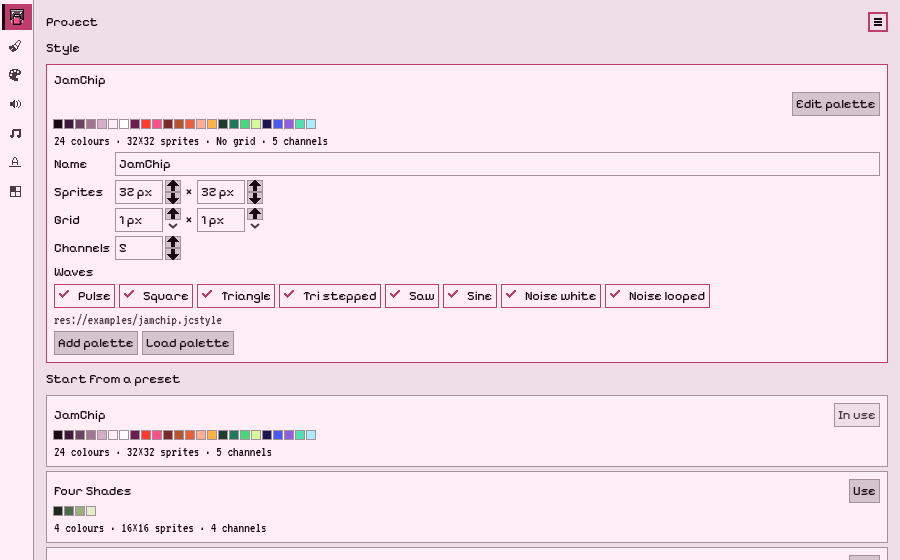
What a style is
Section titled “What a style is”Your game’s look and sound in one place: its palettes, a main one and any swaps that recolour it, the size new sprites open at, the grid, and its sound chip. That’s how many channels, the sounds that can play at once, and which waves, the basic tones like square or noise, its sounds may use. Every tab starts new work inside it. New sprites open at its size, new tilesets and fonts on its grid, all in its colours, and new sounds and songs get only its channels and waves.
You can still step outside it. When a document does, its tab says so: colours outside the palette, tiles or glyphs off the grid, a song with more channels than the style has, or waves it doesn’t use. Nothing changes until you change it. In Pixel, a bar over the canvas says so, and Match the palette shows the sprite moved to the nearest colours in the style before you apply it.
The presets
Section titled “The presets”Under Start from a preset, a card for each:
| Preset | Colours | New sprites | Grid | Channels | Waves |
|---|---|---|---|---|---|
| JamChip | JamChip’s 18; in Godot, the project’s default palette if you set one | 32×32 | none | 5 | every wave |
| Four Shades | 4 greens, dark to pale | 16×16 | 8×8 | 4 | Pulse, Tri stepped, Noise white, Noise looped |
| Ink | 2, a near-black and an off-white | 16×16 | 8×8 | 1 | Square, Noise white |
| No Limits | any colour | 32×32, any size after | none | up to 8 | every wave |
JamChip is the built-in style: a project that hasn’t picked one works in it already.
No Limits is the way out. It holds you to nothing, and no tab warns about anything. It keeps no palette and saves no file.
The last card, Your own, has New: a style of your own that starts on the palette you have, with JamChip’s sizes, four channels and every wave. Change any of it once it’s saved.
Picking one
Section titled “Picking one”The first time JamChip opens on a project with no style, it asks: “What should this game look like?”, with the same cards. Skip leaves the project on JamChip’s built-in style until you pick. To be asked again, open the ≡ at the top of the page and pick Choose a style.
Or press Use on a card. The project gets its own copy of the style, so changing it never changes the preset. In Godot, a save dialog asks where the copy goes, and a palette it needs is saved beside it; the app keeps the copy without asking. If you’ve used that preset before, Use picks up the copy you already have: in Godot, one saved at the top of the project. From then on the project uses it, and its card says In use.
You can switch any time. Nothing you’ve drawn or written changes. If an open document steps outside the new style, its tab says so.
In Godot the style is a .jcstyle the project names, shared with your team the way project.godot is. The guide has where it lives and how the inspector shows it.
Changing your style
Section titled “Changing your style”Once the project uses a style of its own, its Name, Sprites, Grid, Channels and Waves are fields on the page. Change one and it’s saved. A 1×1 grid is no grid.
Edit palette opens the style’s main palette in the Palette tab, or in Pixel when the Palette tab is off. A swap is another palette with the same number of colours, and Edit beside it opens it the same way. Saving over a palette that sprites, tilesets or fonts already use asks first, since they change with it.
In Godot, Add palette adds a swap: New from the main palette copies the main one for you to recolour, and Link a file adds a palette file you already have. Remove beside a swap takes it off the style and keeps its file; if saved documents still use it, the page says how many. Load palette makes a palette file the style’s main palette. Every palette in a style has the same number of colours, so a file that doesn’t match the others is refused. Load palette on a style with no swaps takes any length. Add palette, Remove and Load palette each wait until the palette’s edits are saved.
The rest of the page
Section titled “The rest of the page”Recent lists the last ten documents you opened or saved in this project. Pick one and its tab opens it.
The ≡ at the top holds Preferences, Choose editors, Choose a style, Help and About JamChip. Preferences is where you hide an editor you don’t use: ≡ → Preferences → Editors.

JamChip, by GlitterSnack. MIT licence. Built from the source on every merge. Its artwork and screenshots are made with JamChip.